Droid Eris Performance

Make Your Droid Eris Faster & Smoother, and Increase Battery Life! Updated 12/20

I got my Droid Eris in November of 2009 (the month it came out) and since then, the Droid Incredible, Droid X, and Droid 2 have been released. Comparing stock firmwares and their average performances, the Droid Eris is last on that list. In addition, Android 2.2 has “officially” been released for all the Droids except the Eris!

However, with much research, reading, and testing, I have been able to increase performance, stability, and battery life on my Droid Eris by running a ported version of Android 2.2 and some custom apps and tweaks.

Warning

I must remind you though that making unofficial software and firmware changes to your handset violates the warranty of your phone; therefore, if anything goes wrong during this process or in the future, you will be unable to return the phone for a replacement unless you are able to return the phone back to its original, factory settings. I am not responsible for what you choose to do with your phone.

Root is vital!

Before you follow a majority of the following steps, I must stress that rooting your phone plays an important role. Rooting your phone gives you the ability to make unofficial software and firmware changes to your phone, giving you the ability to hack your phone to improve stability and performance. Get directions on how to root your Eris by reading “Run Android 2.2 (Froyo) on Your Droid Eris (How-To).”

You need Froyo (Android 2.2)

Back in May of 2010, Kaos started working on porting Froyo over to the Droid Eris. It started off rough, but now at version 34, FroyoEris runs as smooth as butter! FroyoEris is not the only option out there. If you look around, you’ll see there are several choices available; however, I personally recommend FroyoEris. Now that I’m running Froyo on my Eris, I refuse to go back to the stock 2.1 firmware! Instructions on how to run Froyo on your Eris are available. (Keep in mind that you need root to do this).

Increase performance, stability, and battery life

This section is what I’m sure you’ve all been waiting for. With the tweaks I’ve made to my Eris, it runs smoother than cutting butter with a hot knife; smoother than a baby’s butt; as smooth as silk (however you want to say it!).
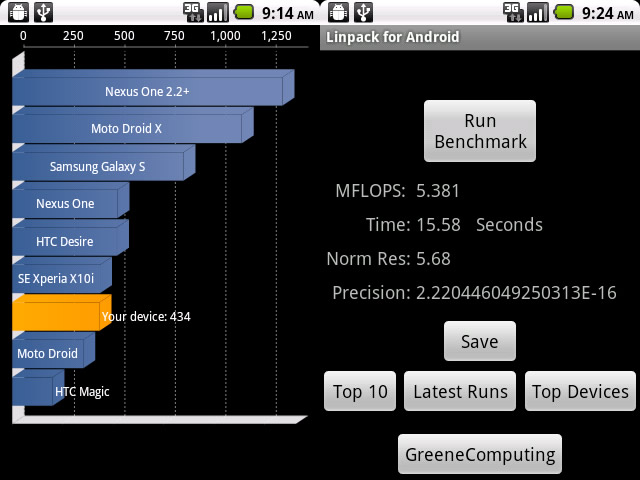
Quadrant and Linkpack Stats with normal settings

Above is my Quadrant and Linpack stats when my phone is at normal, every-day settings. I am not a huge fan of overclocking my phone for higher stats and numbers; it’s a phone for Pete’s sake! Overclocking your phone will give you higher performance numbers, but you’re at risk of your phone running more unstable than it should.
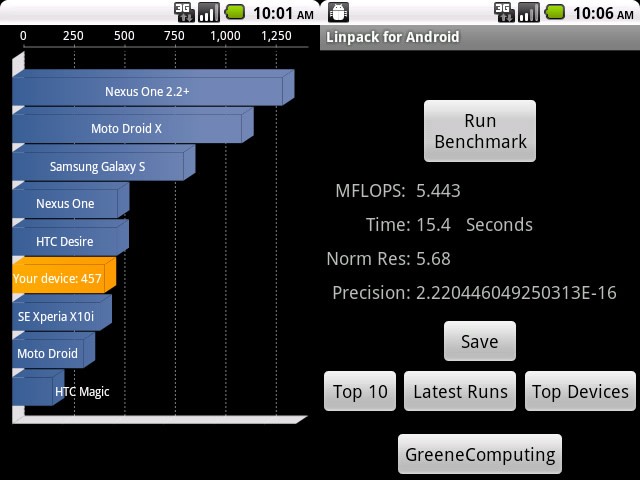
Quadrant and Linkpack Stats slightly overclocked

For those who are interested, the numbers above are just an example of the kind of performance you can get with some overclocking (SetCPU was set at 806400). However, I’m more interested in my phone’s stability and not raw performance.

Prerequisites

Before I get started, I hope those of you interested in this have gone through and already know the prerequisites of downloading and installing custom apps. If you do not know, please read “Swype! Never Tap to Type on Your Phone, Again!” You do not have to install Swype, but you to understand the steps of how to download and install a custom app.

You should also know how to flash custom .zip files. If you do not know how, please read “Run Android 2.2 (Froyo) on Your Droid Eris (How-To).” Again, this article is to help you understand how to flash a file.

As a note, I will never, I say again, never, suggest or promote something I have not tested, used, or performed myself personally. I am very careful to suggest things, and I make sure I, myself, have tried it before I do a write-up on it. I am a firm believer on promoting something after doing it myself.

Do NOT unzip or tamper with the zip files and make sure to download the zip files linked on this site. Flashing a tampered or incorrect zip file may cause errors or even bricking your phone.

As a final note, you do not have to follow every step. Only follow the steps you are comfortable with.

Install custom apps

SetCPU

SetCPU is a wonderful application that allows you to tweak your phone’s CPU and to set and gauge your phone’s performance based on different circumstances (default, plugged in, screen off, etc.) It works on most, if not all rooted Android 1.5/1.6/2.0/2.1/2.2 devices.

  1. Download and install SetCPU at http://forum.xda-developers.com/showthread.php?t=505419.
    (I recommend version 2.02)
  2. Open up SetCPU.
  3. Select “Autodetect Speeds Recommended.” (If SuperUser prompts, asking you for permission, click “Allow”)

This is when it gets a little touchy. Settings and tweaks for SetCPU seems to tend to vary based on the user and his device. I can give you pointers on how to get started and some general settings, but in the end, you may have to tweak your settings to make it work for you (depending on how picky you are about your phone’s performance). Please keep in mind that numbers may vary so stay as close as possible when following these directions.

(Updated October 8, 2010)
Warning: Clocking your CPU too high or too low may cause your phone to freeze, become instable, or restart. Please use caution when adjusting your CPU settings (I suggest not going higher than 710000). In addition, the SetCPU widget is known to cause problems for people so if you are experiencing problems or lag, remove it for better performance.

  • Main Tab
    Max – Around 710000, Min – 122880, Scaling – Ondemand
  • Profiles Tab
  • Check “Enable.”
  • Add and save profiles for the following conditions:
    • Condition – Charging/Full, Max – Around 710000, Min – Around 680000, Scaling – Performance
    • Condition – Screen Off, Max – 480000, Min – 122880, Scaling – Ondemand
  • If your phone seems to freeze up or randomly restart, clock down your Max setting to something lower.
  • Once you have your settings right, go back to the Main Tab of SetCPU and check “Set on Boot.”

That should get you started with SetCPU! Plug your phone in and start using your phone a bit. I saw a difference in my phone’s performance immediately. Remember, setting may vary by user. My guide is to be used to help you get started in the right direction; it is not the de facto.

AutoKiller

AutoKiller, by AndRS Studio, is another must-have app that configures your phone’s internal memory management routines, making your phone run smoother. It also has a full-powered process manager as well. AutoKiller should work on most rooted Android devices.

(Updated September 10, 2010)
From various responses and reads, it seems that AutoKiller is a preference or annoyance, depending on how people use their phones. When you are running a few apps, AutoKiller may kill some processes; therefore, if you are one that likes to run multiple apps all the time, setting the preset to “Moderate” or “Optimum” may be better than setting it to “Strict.” Again, I suggest testing before taking my final word for it since I don’t use my phone like you do.

  1. Download and install AutoKiller from either the Android Market by searching for “AutoKiller” or at the AutoKiller official website.
  2. Open up AutoKiller (If SuperUser prompts, asking you for permission, click “Allow”)
  3. You can test the settings for yourself, but I would suggest setting your Presets to “Strict Optimum.”
  4. Menu > “Settings” and make sure “Apply settings on boot” is checked.

The beauty of AutoKiller is that it runs in the background and once you set your preset, you do not have to open AutoKiller again.

LauncherPro

By default, Froyo’s launcher is Launcher2 and if you flashed KaosFroyo, it should be ADW Launcher. From my experience and even a lot of reaching, LauncherPro is a highly customizable launcher, and it’s also fast! From the number of homescreens and dock settings to custom icons, there’s a lot you can do with LauncherPro.

If you are running KaosFroyo and want to remove ADW, download “adw-b-gone.zip” at http://www.multiupload.com/HW7LCPJ3UI and flash the zip using the recovery menu. For instructions on how to flash a .zip file, read “Run Android 2.2 (Froyo) on Your Droid Eris (How-To).”

  1. Download and install “LauncherPro” from the Android Market.
  2. Press the Home button, and select “Launcher Pro” as your default launcher and click the check mark when it asks you to save it as your default home/launcher.
  3. To get the LauncherPro’s settings, click Menu > “Preferences.”

GPS Status

(You do not need root for this)
Having difficulty with your GPS or does it take an abnormally long time to lock your position? I’ve had this problem after flashing a dozen or more custom ROMs on my phone. GPS Status will allow you to reset the GPS and download GPS assistance data, which should speed up your GPS for a few days.

  1. Download and install GPS Status from the Android Market.
  2. Open GPS Status, Menu > “Settings.”
  3. Go to “GPS Sensors” and click “Manage A-GPS State.”
  4. Select both “Reset” and then “Download.”
  5. Put your phone down on a flat, level surface and select “Calibrate roll and pitch.” This reset and calibrates your accelerometer.

You should notice that the time it takes your GPS to lock your position in Google Maps is lower if it was taking longer than normal before.

Dialer One

(You do not need root for this)
If you’re running a Senseless ROM (like KaosFroyo) and you absolutely hate the default Dialer, join the club! With 900+ numbers on my phone, scrolling through or searching for numbers is just another two or three steps I would love to avoid since the default dialer does not have smart-dial. Dialer One is your answer! With speed dial and smart dial capabilities, it makes dialing a piece of cake.

  1. Download and install Dialer One from the Android Market.
  2. When prompted, set Dialer One as your default dialer.

Wireless Tether

(You need root for this)
If you want to be able to turn your Eris into a wireless router (for your iPad, Kindle, laptop, etc.), you need an app called Wireless Tether. Wireless Tether turns your Eris into a wireless hotspot!

  1. Download and install Wireless Tether from the Android Market.
  2. Open Wireless Tether.
  3. Menu > Setup > Change SSID (This is the name of your wireless signal).
  4. Menu > Setup > Enable WiFi-Encryption > Check.
  5. Menu > Setup > Change Passphrase (This will password protect your wireless signal).
  6. Press the green wireless logo to start tethering!

Gingerbread (Android 2.3) Keyboard

(You do need root for this)
Get a little taste of the new Android 2.3, codename Gingerbread, on your Android phone or device by installing the Gingerbread keyboard! If you prefer the traditional tap-to-type keyboards, the Gingerbread keyboard is on top of that list! It’s a bit easier to use by allowing you to access symbols easier and auto-correction and prediction is by far more accurate than most other keyboards out there.

Follow directions at http://jonsuh.com/2010/12/gingerbread-keyboard-for-android/

Recalibrate your battery

Recalibrating your battery may increase the longevity of your battery, especially if you’ve been experiencing issues with battery life. This can be done with the recovery menu.

  1. Charge your battery to 100%.
  2. Power off your device, start it back up into Recovery mode (Volume Up or Down + Power On).
  3. Select “Wipe” and choose “battery stats” with your trackball.
  4. Shut off your device.
  5. Unplug your phone and power it on.
  6. Leave your phone unplugged and fully drain the battery. (Do not plug it back in. Make sure it’s dead by trying to turn it back on)
  7. Leaving the phone off, plug the phone back in and let it fully charge without interruption.

You should see an increase in battery life after doing this simple recalibration of your battery. Thanks to Hungry Man.

Upgrade your radio

*WARNING* As a warning, flashing your radio, if done incorrectly, is one of the easiest ways to brick your phone. Please take caution and take this as a warning. Please proceed at your will and with caution. I am not responsible with what you choose to do with your phone.

Upgrading your radio may help improve the signal strength of your device. If anything, it will give you the lastest version of the released radio. To check the version of your radio, go to Settings > About Phone. The radio version is the number underneath “Baseband version.”

The latest version of the Eris radio is the July 2010 – 2.42.01.04.27 radio.

  1. Download the July 2010 radio at http://www.multiupload.com/BNPEN2HAF0.
  2. Put the .zip file on your sdcard at the root (/sdcard/)
  3. Power off your device, start it back up in Recovery mode (Volume Up or Down + Power On) and flash the zip.
  4. Reboot your device.

Upgrade your kernel

(Updated September 17, 2010)
Upgrading your kernel may help improve the performance and stability of your device. To check the version of your kernel, go to Settings > About Phone. The kernel version will be listed under “Kernel version.”

Though there are a few kernels out there, the one I recommend is the [GPL] 2.6.29.6 CFS Kernel compiled by Conap and Decad3nce, both developers at XDA-Developers. The latest version is the 2.6.29.6 version 5. I personally feel my phone performs better after installing this kernel.

As a side note, some of the latest ROMs (including KaosFroyo v38) already come preloaded with the CFS kernel.

  1. Download the latest version of the CFS Kernel at http://android.grdlock.net/index.php?&direction=0&order=&directory=HTC%20Droid%20Eris/Conaps%20Roms.
    Latest version is V8 (http://forum.xda-developers.com/showthread.php?t=774211)
  2. Put the .zip file on your sdcard at the root (/sdcard/)
  3. Power off your device, start it back up in Recovery mode (Volume Up or Down + Power On) and flash the zip.
  4. Reboot your device.

If you would be so kind…

If you benefited from this post and would be so kind as to donate, I would greatly appreciate it! I’ll be sure to take more time to post future Android-related articles to improve your phone!

Well known bugs

Camera bug

Some have been experiencing the camera bug when various versions of KaosFroyo (i.e. v35, v35-1). There is a temporary fix that should work by turning auto focus to manual focus or turning it off.

  • Open the camera.
  • Press the settings icon > “Focus mode” > Set to “Off” or “Touch.”

3D gallery bug

Many people are also having issues with the 3D gallery or just find it slow. My suggestion is to download and flash the 2D gallery.

Tweak your settings

There are many options available on your phone that will help speed it up and improve it’s performance a bit.

Disable Window Transitions

  1. Settings > Display > Animation > “No animations.”
  2. Applications > Spare Parts > Window animations > “Off.”
  3. Applications > Spare Parts > Transition animations > “Off.”
  4. Applications > Spare Parts > Fancy input animations > Uncheck.

Change VM Heap Size

  1. Settings > CyanogenMod Settings > Performance settings > VM heap size > 32m

If you use LauncherPro

Go to Menu > Preferences >

  1. Advanced Settings > High quality scrolling > Uncheck.
  2. Advanced Settings > Use 3D drawer > Uncheck.

Enjoy your phone

If you followed most, if not all, of these suggestions, your phone should be performing better than before. Although I am tempted to upgrade to a newer phone, I keep telling myself I am going to hold out for the Verizon iPhone (if it ever comes out). Until then, I can manage with my Eris running Froyo!

Have suggestions? Share your thoughts

As I continually come across new apps to improve it’s performance, stability, and battery life, I will keep sharing them with you. If you have a Droid Eris and have suggestions on apps, or you tested all or some of these methods, I would love to hear from you. Tell us about it by commenting below!

  • Pingback: Make Your Droid Eris Faster & Smoother, and Increase Battery Life! (How-To) - Android Forums

  • Jason Brynarsky

    Condition – Screen Off
    Max – 48000 <<<<<<< Is this line right?
    Min – 122880
    Scaling – Ondemand

    • http://jonsuh.com Jon

      I overlooked one more zero. Thanks for picking that up for me, appreciate it, Jason.

  • Jamey

    Why cant i use my sd card after update of the kernel

    • http://jonsuh.com Jon

      Not sure why you would be experiencing that. I recommend shutting your phone off, open the back, pop out the SD card, and pop it back in.

      • Jamey

        yea i did all that it was working before i updated the kernel and stuff.

      • Jamey

        ok it works now thank god

  • rabidroid

    Very nice write up!

    I just updated my kernel from your link and it made my Eris Official a lil better. I am gonna back this up and give 2.2 a try. You made it a lot less scary looking than what I looking at on XDA!

    I was an Evil Eris guy, but it looks like Frame has had enough! Can’t say I blame him.

    • http://jonsuh.com Jon

      Thanks! Let me know how you like 2.2

  • Sipherx

    Keep writing good work.

    • http://jonsuh.com Jon

      Thank you. Let’s just hope I have enough content to write about, haha

  • Pingback: Tweets that mention Make Your Droid Eris Faster & Smoother, and Increase Battery Life! (How-To) | JonSuh.com -- Topsy.com

  • http://www.facebook.com/kmorris97 Kyle Morris

    Really nice post.
    There’s some great info in here.

    • http://jonsuh.com Jon

      Thanks a lot; I enjoy sharing the little that I know. As long as I know it will help others, s’all good!

  • Pingback: Fav ROM? - Page 3 - Android Forums

  • Lp4261

    Thanks for the help. I did all of this today. Is there anything else you would suggest for battery management or just great apps for root users?

    • http://jonsuh.com Jon

      You can tweak transitions or turn transitions off by opening up “Spare Parts” when you go the apps menu and go to “Window animations,” “Transition animations,” and uncheck “Fancy input animations.” I can care less about my phone being animated; it speeds up your phone a bit.

      I’ll be sure to add more to this article when I have the time to add to this writeup

  • doog

    Just a note: in your discussion of both SetCPU and the CFS kernel, you may want to note that the minimum CPU speed should not be set lower than 245 MHz.

    - doog

    • doog

      Oops, I meant to add that the minimum CPU should be no lower than 245 if you have the CFS kernel installed.

  • Genopapa

    Awesome website, this will hel me root my girlfriend’s Eris easily. Quick question – what’s the easiest way to go back to stock (un-root) in the instance or warranty issues etc? Thanks!

    • http://jonsuh.com Jon

      There are some articles around on XDA and the net about unrooting and putting stock 2.1 on the Eris with RUU. I personally have never done it, but I am thinking of working on a how-to unroot article for the Eris. Sorry, I can’t help more. Hopefully I write up that article, soon.

    • Jobsz89

      Before you flash the custom rom, backup the phone’s current one..
      I’m not sure off the top of my head but I think you can do that when you go into recovery mode, there should be an option there.
      If not, since it’s your first time I’m sure there’s a guide linked from one of the one’s you’re looking at on how to root the phone

    • http://jonsuh.com Jon

      Just posted a how-to for unrooting your Eris http://jonsuh.com/2010/09/unroot-your-droid-eris-how-to/

  • Pingback: Run Android 2.2 (Froyo) on Your Droid Eris (How-To) | JonSuh.com

  • Jobsz89

    That battery recalibration really does the trick?

    • http://jonsuh.com Jon

      It seemed to improve my battery life a bit. Worse case, it won’t do any harm to your battery, that’s for sure. It’s a worth a try, if you ask me.

  • TK

    When flashing a kernel or rom i get a message about no signature, what am i doing wrong? Im not making any changes to the files, just drag and drop onto my sd card. Any help would be appreciated, love what you are doing, keep up the awesome work!

    • http://jonsuh.com Jon

      What OS and browser are you using to download these files? And do you mind telling me a more detailed process of each step you go through to get these files onto your SDCARD?

      • TK

        Thanks for the reply Jon, I am using mac os 10.5.8. I have downloaded from a couple different sites. i never open the downloaded files, just open the download folder and transfer. I have tried a couple different ways of transferring to the sd card. i have done a straight across drag and drop and compressing the file.

        • http://jonsuh.com Jon

          What browser are you using? Try using a different browser, like Firefox. I’m on a Mac running Snow Leopard and I use Firefox

          • TK

            Thanks Jon, that did the trick! Less than 10 minutes and now running froyo on my eris. Thanks!

  • Dpcalistro

    Jonathan, thanks for your hard work. You make a lot of people lives sooooo much easier. Your guides are invaluable, as well as, easy to understand through to completion. I have a question that I hop you can help with; After recently updating to froyo V35-1, I seem to have lost the ability to use Htc sync. My Windows 7 x64 laptop no longer recognizes my eris, but will recognize its sd card when put into mass storage mode. The 2.1 had the “connect to computer” in settings. I cant seem to find how or where to go to get it to sync. Any other run into this? Any help is greatly appreciated. Mahalo, Dpcalistro

  • Anonymous

    Great tutuorial and im very thankful for that. I have one question tho, I am trying to get some live wallpapers to work, but they either show a blank screen or flip bk to the previous cyonegen wallpaper i had set. Plz help me. tks

  • JDoctorick

    Good guide…was easy to upgrade. Phone runs very quickly now w/ 2.2.

    However — most of my google contacts are visible in the dialer (and “dialer one”), yet some have vanished. However, they are visible in the call log, with all important information about the contact. The smart dial feature of dialer one cannot find the contacts.

    Also — I assume “group” function was lost? Also, it seems as if the app “Group text” won’t work with this ROM.

    Otherwise, bravo.

  • Scotsman

    Thank you for taking the time to gather, test, and share all this great info and make it so easily digested by even the clueless :) I was constantly shopping new phones, trying to game plan my next acquisition upon my upgrade anniversary, but like you said, now I am pleased and enjoying my Eris all over again. I’m truly impressed with the esprit de corp and camaraderie I’ve encountered while perusing XDA, AndroidForums, etc. Everyone was constantly bending over backward to help one another. Brightened my day lol. I accomplished everything listed on this page on a Sunday afternoon, while watching football, all with no prior understanding of any of this. Thanks again and well done.

  • JDoctorick

    I figured out the gmail issue; was a simple matter of how my old ROM stored the contacts.

    Only issue I’ve run into is the LED and trackball won’t light for notifications, even when that option’s selected. Pretty minor problem, all things considered.

    • http://jonsuh.com Jon

      Yeah, with the drastic improvement 2.2 has made, I can live with the minor glitches the Froyo ROM has; no biggie

  • Pingback: [GUIDE] Make Your Droid Eris Faster/Smoother/Increase Battery Life! - Android Forums

  • Pingback: [GUIDE] Make Your Droid Eris Faster/Smoother/Increase Battery Life! | Android Phone News

  • conn0r

    My friend, thank you for your effort! I’ve been moping around lately–watching my friends and family use their newer android devices. Putting Froyo on my Eris has put a new wind behind my sails. Stay sexy.

  • mike

    I love my new and improved eris, question though, ive tried disabling the default messaging app and using handcent sms as my default, however, when i get sms or mms messages, itll notify me twice, once with the default one that is installed after 2.2 and handcent. it wont let me disable in any way the one that came with 2.2. not sure why i cant disable this app. any ideas?

    • http://jonsuh.com Jon

      Did you happen to disable the default messaging notifications? Go to Applications > Messaging, then press Menu (make sure you’re in the view where you’re viewing all your messages and not viewing one conversation) > Settings and uncheck Notifications.

  • SamH

    I love my phone again – thank you. I am having one issue the camera does not work correctly. I hit the camera button the picture comes up if I push the trackball or shutter button it just locks the phone up. If I leave it, it eventually reboots the phone.

    • http://jonsuh.com Jon

      Yeah, the camera is a known issue. Best thing to do is either shut Auto Focus off totally or set it as Touch to Focus. That solved the problem for me.

      • SamH

        Cool thanks – that fixed it. Great work.

  • http://www.facebook.com/profile.php?id=1334333010 Matthew Metz

    I’ve made about half of the tweaks on this page, (root, setcpu overlcock, battery recalibration) and now my Eris turns itself off and on all night when I plug it in to charge. I have to turn the power off in order to plug it in without it turning itself off and on. This causes some communication issues when I have to recharge my phone in the afternoon because the battery is nearly dead after a day at work. Also I cannot plug it in to the car charger for the same reason. Heard of anything like this? Thanks for the great site, other than this problem I’m very happy with my rooted phone.

    • http://jonsuh.com Jon

      My suggestion is maybe the SetCPU settings are clocked too high. What is your SetCPU set at? Try lowering your max SetCPU settings; that should solve the issue.

      • http://www.facebook.com/profile.php?id=1334333010 Matthew Metz

        flashed kaosfroyo v35.1 and overclocked to 729600-245760, down from the setting suggested on your page (769 max). working very well now, thanks for the great advice and keep up the good work.

  • Pingback: The only dealbreaker between froyo roms and me - Android Forums

  • Sarah Ann

    Last night I did the flash on this page (my phone was previously rooted). Now my phone is saying that it is on the Sprint network, but I have Verizon. Also, my phone says that it is attached to a USB cable, but it’s not. (I didn’t have these issues before I flashed this ROM)

    Any fixes for those two things?

    Other than those two issues, the phone’s working GREAT!

    • http://jonsuh.com Jon

      Well firstly, the Sprint issue is nothing more you just seeing Sprint. You’re still on the Verizon network, no worries! If it really does bother you, you have the SDK installed, you can head to http://github.com/punk-kaos/KaosFroyo/wiki/kaosfroyo-faq#UIstuff and it will tell you how you can push a new eri.xml file, which has the name for the network, to replace Sprint with whatever you want. If you’re unsure of how to use “adb push,” I can further help.For the USB cable issue, my suggestion would be to unplug your USB cable, go to Settings > Application settings > Development and uncheck “USB debugging” and “USB debugging notify.” Then restart your phone, go back and recheck “USB debugging” and “USB debugging notify” and see if that solves the issue.

      • Sarah Ann

        Thank you for the info. The USB issue is fixed!

      • Aaron

        I tried the eri.xml file push, and while it removed the “Team AndIRC” from the banner, it didn’t replace it with what I wanted it to say. Instead, it made the Roaming indicator flash constantly. The only change I made to the eri.xml was inside the quotation marks (replacing “YourBannerHere”). Any idea as to what I might have done wrong?

      • Alejandro4588

        jon can u provide the cmd line for pushing with location and file type please.. i cannot figure out where its goin

  • Pingback: new rom - Droid Forum - Verizon Droid & the Motorola Droid Forum

  • Pingback: [10/07 UPDATE] Make Your Droid Eris Faster, Smoother, Increase Battery Life! - Droid Forum - Verizon Droid & the Motorola Droid Forum

  • JT Wieme

    Everything on here has worked pretty well for me. The only problem I had was with setCPU. I had it set at 768 Interactive but my Eris was freezing up everytime I opened anything: maps, talk, handcent, phone, anything. It always froze up. I was running v34 so I wiped and flashed v36, ramped up the CPU to 768 again and still saw the same problem. I dropped it to 710 and the problems went away. I tried 729 but it still froze up. 710 seems to be the way to go (at least for me).

    • http://jonsuh.com Jon

      Yeah, I’ve had people tell me that. That’s why I have that disclaimer up there saying that SetCPU settings seem to vary by user and to use my guide as a guideline but not the de facto. I had mine set to 768 and it worked fine, but when I went over 800, it would freeze up.

      I may clarify it even more though. Thx for the info. I hope otherwise, you’re happy with the “new” Eris :)

  • Rb082248

    thanks!

  • 722abp

    Everything works fine, I love it. However, how can I remove the annoying ‘SPRINT’ banners and logos, its not even my carrier? Thank you.

    • http://jonsuh.com Jon

      KaosFroyo v37 came out. If you flash the latest version of KaosFroyo, it should also fix the Sprint banner.

  • Ggnarl

    I did this mod when my wife got her Droid X, and all in all it is a huge improvement! So many tweeks! I disabled all the screen transitions, set the music player to always show in the lockscreen etc. Also look in your app drawer for a app called Spare Parts, it has a bunch more settings to customize your phone further, just dont forget where it is! I changed the end button settings and was looking for a week where that setting was..

    Also overclocking too high is a recipe for failure! I am at 710000 and super stable, makes the phone faster for sure.

    One issue i had was with screen brightness auto setting was too dim. I fixed it by just putting the power control widget on the home screen and setting it manual from dim to bright.

    Anyone know how to make the lock screen time out a little longer?

    • http://jonsuh.com Jon

      To make the lock screen time out longer, go to Settings > Display > Screentimeout and set it to what you want.

  • Fiter50

    thank you for this page. I have been thinking about rooting my stock eris for some time now. I am not a techy person so I have been a little scared off reading some of the details in either android forum or the eris forum. Yesterday I decided to go for the change. I had a few issues just because I didn’t know how to mount my phone to the computer and on my phone its the power on plus the volume down button. After everything was done I have to say it was not that bad. Now I have a smooth runnng phone.. stll learnng about the new features. again thanks.

  • Markespo55

    i recently rooted my eris to kaos froyo and everything was perfect for about a week and my phone was crashing and force closing almost everyday. i found your website that came down from heaven that literally has everything available for me to make my phone faster. i did almost everything in this article to my phone and it helped big time. for about a week. its been a couple weeks now and i realize that my phone is starting to act up again and slow down worse than it was when i got it out of the box. i was wondering i guess how to fix or help this problem that i have. i know im not going into detail. i dont know much about rooting phones so i dont want to go into and end up messing things up to where it bricks.
    im guessing my question would be should i flash it completely and start over? or are their other options i can go by improving its performance.
    my apologies for telling you my random story to get to my question.
    thaks =]

    • http://jonsuh.com Jon

      My suggestion would be to lower the clock speed of SetCPU, set the max to something lower like around 710000, that may help. Otherwise, I usually recommend people to do a full wipe and dalvik wipe and reflash. Just make sure to back up anything you wouldn’t want to lose.

  • New2Root

    I love HTC Sense UI. I think it’s a pretty awesome experience for someone who likes tech but is used to the smoothness of a bought item. Any-who, is there any way to duplicate that with Kaos or any other ROM?

    • http://jonsuh.com Jon

      Not full Sense, no. There are some apps like FancyWidget that gives you the big clock w/weather widget, but you won’t ever get the full feel of Sense back with Froyo on the Eris. At least not yet; Kaos is still developing Froyo w/Sense called KaosLegendary at http://forum.xda-developers.com/showthread.php?t=660512

  • http://www.facebook.com/profile.php?id=6849297 Steven Brent Dunigan

    Great guide! The only thing I am having issues with is battery life. I have followed every step on the guide and have also disabled any animation and deleted almost every widget (the only widget I have running is a clock and date widget), but I still can’t seem to get my battery to last more than 4 hours. Would buying a new/better battery help any or would it only increase battery life because it has more power? Any suggestions?

    • http://jonsuh.com Jon

      Not quite sure if a newer battery would help. I know for sure an extended battery would help, but most people aren’t all about dropping that much money for one.

      I would say try getting some help at the XDA Developers Droid Eris forum at http://forum.xda-developers.com/forumdisplay.php?f=554

  • Padishar123

    i have been tinkering with my rooted eris for almost 6 months and this is the best speedup guide i have ever seen! thanks!

    • http://jonsuh.com Jon

      No problem! Glad I could help.

  • Ednev4

    My Eris is so cool, fast and stable thanks to the Forums and Jonathan. I was tempted to trade up to the incredible because of the HTC deal right now but I think not. After all the tweaking I have done which started with root and KaosFroyo with conaps kernal then as Jon suggested I added Setcpu, AutoKiller, RootExplorer and now the new Swype It’s too much to give up on!
    I think I’ve followed all Jon’s suggestion except ProLauncher which I did try but I prefer the ADW setup.
    When I was in the Verizon store yesterday I compared download time on my super Eris vs the Incredible and 5 out of 5 times my Eris was faster. Seconds faster in downloading text and pictures. Now I don’t know how thats even possible concidering the 1g processor in the incredible all I know is the Eris did it.
    Anyway its been fun and now I’m I’m going to relax and enjoy this creation.

    Edward

  • Zthagg

    This has been an excellent first place to guide me through the ins and outs of a ROM upgrade. I am still working though some of the steps and hoping for the system responsiveness WITH the battery life help. Right now the battery life has gone down a bit, but I have not verified all the settings yet. I’ll definitely give a full recount when I am finished. I am doing both my eris and my wife’s as I prove this out on my own phone first.. Thanks for your guide!

  • Markespo55

    would the froyo versions work on the lg ally? i have my eris rooted and i was wondering if would work with the ally. thank you for all your help by the way. your awesome!

    • http://jonsuh.com Jon

      I apologize, but I am unfamiliar with the Ally, and I would hate to give you input about something I am unfamiliar with. Maybe try searching on Google, sry!

  • Markespo55

    the kaos froyo root. thats what i was meaning by froyo. ^^

  • JDoctorick

    Looks like 2.3 has been released! Are you planning on doing a write-up to get 2.3 working on the Eris? Either from 2.2 to 2.3, or earlier ROMs to 2.3. You 2.2 guide was great…just wondering if it’ll be possible to easily update to 2.3, without having to wipe and all that…

    Thanks! God speed.

    • http://jonsuh.com Jon

      I read about 2.3 on the Eris, but right now it’s all in a development stage where much does not work. I’ll try to keep my eyes open for when much of it is working before I write up something about 2.3.

      It’s a bit difficult bc I currently own an Eris now, but I’ll see if I can help you guys out.

      • JDoctorick

        Great! Thanks!

  • Az Seahawk

    I think my phone is a bit too flaky for Froyo. With V38 the camera didn’t work and the battery drained sooper fast. I was sure I read that these were issues in earlier versions but pretty much corrected by v38. I could not turn off the auto focus on the cam because it would force close before I could get to the setting. Maybe there is another way to turn auto focus off but I was ignorant to an alternative. All that said congrats to those who succeeded with their fones. I admire the work of jonsuh, as I believe its prolly my phone that is the prob.

    • Phidelt1499

      Regarding the camera issue, I had the same issue, what I did was go to the Market and download a new camera app. Camera360 actually has some pretty sick effects and works great.

  • Volcom3209

    the gingerbread keyboard did not work and I just get force closes i want to upgrade kernal to cfs v9 because i have v7 or v8 with tenzos froyo-sense ” which is the fastest rom ive ever used and get live wallpapers to work (some at least) on my eris!

  • Anon

    I prefer nonsensikal v16.1. And, yes, these suggestions got it working faster and more stable with better bettery performance, Thanks.

  • Coreyharden

    Great article… sped my eris up tremendously… it’s like a new phone now!

  • Coreysmith08

    Someone between rooting my Eris and upgrading it to 2.2, I lost the ability to receive MMS messages from both the basic text app on the phone and Handcent. How can I fix this?

  • Pingback: Gingerbread on my Eris - Droid Forum - Verizon Droid & the Motorola Droid Forum

  • Jadenekness

    CAn I hook up my droid Eris to a computer and get internet through my phone?

  • DroidAgain

    I must say… you have made me reactivate my Eris with these updates. I had switched to my old Storm (while waiting for NE2) since the Eris was soo slow and buggy. I pretty much just used it as a tiny tab for a while. Then I decided to root and upgrade the ROM. It is super fast now for what it is (400 on my quadrant score). I am using CPUBoost lite for overclocking since it is completely free but can be setup similar to SetCPU. AWESOME POST! THANKS!

    • DroidAgain

      Oh for comparison my old quadrant score prior to upgrade was 190…

  • Miguelr12

    I did not kown shit?”the how to “,tec savi ,xda developed an easy why to keep my htc eris alive thank u! thank u! thank u guy!, please “donate” keep it free for others that dont have money to buy, or change there plans to buy another phones.this ppl put there all in to this, for free it take time an i beileve money. so donate even if its a dollor. thanks michael. oh an its not only my cell all htc’s.

  • Miguelr12

    new v39 update has a problem does not fine gps for nav on eris. unistall got v38 an works fine now .please look at it? thanks

  • BigGunz201034

    My dialpad will not function while trying to update my roaming since I installed the new radio.  Any suggestions on how to fix? 

  • Travis420j6

    ty for this it helped out alot